+(2).PNG)
Doloto is an AJAX application optimization tool, especially useful for large and complex Web 2.0 applications that contain a lot of code, such as Bing Maps, Hotmail, etc. Doloto analyzes AJAX application workloads and automatically performs code splitting of existing large Web 2.0 applications. After being processed by Doloto, an application will initially transfer only the portion of code necessary for application initialization.
The rest of the application's code is replaced by short stubs -- their actual function code is transferred lazily in the background or, at the latest, on-demand on first execution. Since code download is interleaved with application execution, users can start interacting with the Web application much sooner, without waiting for the code that implements extra, unused features.
In our experiments across a number of AJAX applications and network conditions, Doloto reduced the amount of initial downloaded JavaScript code by over 40%, or hundreds of kilobytes resulting in startup often faster by 30-40%, depending on network conditions.
Read more over here....
Monday, January 18, 2010

Thursday, September 10, 2009
RESTful Services With ASP.NET MVC
I have found a very nice article of create RESTful Services With ASP.NET MVC.
http://msdn.microsoft.com/en-us/magazine/dd943053.aspx
http://msdn.microsoft.com/en-us/magazine/dd943053.aspx
Wednesday, September 9, 2009
?? Operator (null-coalescing operator)
?? is used to define a default value for a nullable value types as well as reference types. It returns the left-hand operand if it is not null; otherwise it returns the right operand.
A nullable type can contain a value, or it can be undefined. The ?? operator defines the default value to be returned when a nullable type is assigned to a non-nullable type. If you try to assign a nullable value type to a non-nullable value type without using the ?? operator, you will generate a compile-time error. If you use a cast, and the nullable value type is currently undefined, an InvalidOperationException exception will be thrown.

A nullable type can contain a value, or it can be undefined. The ?? operator defines the default value to be returned when a nullable type is assigned to a non-nullable type. If you try to assign a nullable value type to a non-nullable value type without using the ?? operator, you will generate a compile-time error. If you use a cast, and the nullable value type is currently undefined, an InvalidOperationException exception will be thrown.

Monday, September 7, 2009
SSRS 2005 limitations :
I am working with SSRS 2005 since last 8 months and i came across many limitations which should not be there with SSRS . SSRS is still getting matured so please go through following list before choosing SSRS 2005 for reporting in your system.
Does not support dynamic width for columns:
SSRS doesn’t support dynamic width for columns , also the main problem I found is if you will disable one column based on condition then remaining columns width won’t get adjusted to use hidden columns space. And its very frustrating.
Doesn’t support HTML rendering !!!!!!!!!:
Yes, Its correct that SSRS 2005 doesn’t support HTML rendering of sent data. It is really surprising for me.
CanGrow property :
SSRS controls have cangrow property, if its true then controls will grow based on its contents width. But its can grow in vertical direction but not in horizontal.....
If this property is set to false then it will auto trim data based on controls width. and then if you want to show “...” to show there are some more data then you are in real trouble.
There are some more limitations are mentioned at here.
Hope all this problems are solved with SSRS 2008....:)
Thursday, September 3, 2009
Some nice MVC videos
Some really nice videos of asp.net MVC presented by Phil Haack.
Choosing between ASP.NET Web Forms and MVC
http://videos.visitmix.com/MIX09/T23F
Choosing between ASP.NET Web Forms and MVC
http://videos.visitmix.com/MIX09/T23F
ASP.NET MVC: America's Next Top Model View Controller Framework
http://videos.visitmix.com/MIX09/T50F
Microsoft ASP.NET Model View Controller (MVC): Ninja on Fire Black Belt Tips
http://videos.visitmix.com/MIX09/T44F
Friday, March 27, 2009
Something about MVC (Model View Controller)!!!
I heard so much about MVC and want to share some basic things about MVC.
Basically MVC is a design pattern defined many years back and ASP.NET MVC Framework is the framework to implement MVC pattern.
As Per wordPress the defination of MVC Pattern is
“Model–View–Controller (MVC) is an architectural pattern used in software engineering. Successful use of the pattern isolates business logic fromuser interface considerations, resulting in an application where it is easier to modify either the visual appearance of the application or the underlying business rules without affecting the other. In MVC, the model represents the information (the data) of the application; the view corresponds to elements of the user interface such as text, checkbox items, and so forth; and the controller manages the communication of data and the business rules used to manipulate the data to and from the model.”
Now lets understand MVC Framework.
MVC is a framework methodology that divides an application’s implementation into three component roles: models, views, and controllers.
· “Models” in a MVC based application are the components of the application that are responsible for maintaining state. Often this state is persisted inside a database (for example: we might have a Product class that is used to represent order data from the Products table inside SQL).
· “Views” in a MVC based application are the components responsible for displaying the application’s user interface. Typically this UI is created off of the model data (for example: we might create an Product “Edit” view that surfaces textboxes, dropdowns and checkboxes based on the current state of a Product object).
· “Controllers” in a MVC based application are the components responsible for handling end user interaction, manipulating the model, and ultimately choosing a view to render to display UI. In a MVC application the view is only about displaying information - it is the controller that handles and responds to user input and interaction.
One of the benefits of using a MVC methodology is that it helps enforce a clean separation of concerns between the models, views and controllers within an application. Maintaining a clean separation of concerns makes the testing of applications much easier, since the contract between different application components are more clearly defined and articulated.
The MVC pattern can also help enable red/green test driven development (TDD) - where you implement automated unit tests, which define and verify the requirements of new code, first before you actually write the code itself.
Some benefits of MVC are :
Clear separation of concerns
Testability - support for Test-Driven Development
Fine-grained control over HTML and JavaScript
Intuitive URLs
I will try to post more and more things about MVC.
Basically MVC is a design pattern defined many years back and ASP.NET MVC Framework is the framework to implement MVC pattern.
As Per wordPress the defination of MVC Pattern is
“Model–View–Controller (MVC) is an architectural pattern used in software engineering. Successful use of the pattern isolates business logic fromuser interface considerations, resulting in an application where it is easier to modify either the visual appearance of the application or the underlying business rules without affecting the other. In MVC, the model represents the information (the data) of the application; the view corresponds to elements of the user interface such as text, checkbox items, and so forth; and the controller manages the communication of data and the business rules used to manipulate the data to and from the model.”
Now lets understand MVC Framework.
MVC is a framework methodology that divides an application’s implementation into three component roles: models, views, and controllers.
· “Models” in a MVC based application are the components of the application that are responsible for maintaining state. Often this state is persisted inside a database (for example: we might have a Product class that is used to represent order data from the Products table inside SQL).
· “Views” in a MVC based application are the components responsible for displaying the application’s user interface. Typically this UI is created off of the model data (for example: we might create an Product “Edit” view that surfaces textboxes, dropdowns and checkboxes based on the current state of a Product object).
· “Controllers” in a MVC based application are the components responsible for handling end user interaction, manipulating the model, and ultimately choosing a view to render to display UI. In a MVC application the view is only about displaying information - it is the controller that handles and responds to user input and interaction.
One of the benefits of using a MVC methodology is that it helps enforce a clean separation of concerns between the models, views and controllers within an application. Maintaining a clean separation of concerns makes the testing of applications much easier, since the contract between different application components are more clearly defined and articulated.
The MVC pattern can also help enable red/green test driven development (TDD) - where you implement automated unit tests, which define and verify the requirements of new code, first before you actually write the code itself.
Some benefits of MVC are :
Clear separation of concerns
Testability - support for Test-Driven Development
Fine-grained control over HTML and JavaScript
Intuitive URLs
I will try to post more and more things about MVC.
Friday, June 27, 2008
Visual Studio 2008 and .NET Framework 3.5 SP1 Available Now
The public beta of Visual Studio 2008 and .NET Framework 3.5 SP1 are now available here.
SP1 comes with a slew of enhancements and fixes covering various aspects of the VS 2008 IDE as well as the .NET Framework.
Among the highlights relevant to ASP.NET and web development in the upcoming SP1 release include:
- ASP.NET Data Scaffolding Support (ASP.NET Dynamic Data)
- ASP.NET Routing Engine (System.Web.Routing)
- ASP.NET AJAX Back/Forward Button History Support
- ASP.NET AJAX Script Combining Support
- VS 2008 Performance Improvements in HTML Designer and HTML Source Editor
- VS 2008 JavaScript Script Formatting and Code Preferences
- Better VS Javascript Intellisense for Multiple Javascript/AJAX Frameworks
- VS Refactoring Support for WCF Services in ASP.NET Projects
- VS Support for Classic ASP Intellisense and Debugging
- Visual Web Developer Express Edition support for Class Library and Web Application Projects
- ASP.NET Application Request Throughput Improvements of Up to 10%
- SQL 2008 Support in VS 2008
- ADO.NET Entity Framework and LINQ to Entities
- ADO.NET Data Services
- WCF Development Improvements
- VB and C# Improvements
Other enhancements not mentioned above cover primarily client development (Windows Forms, WPF, and Setup Package). The SP1 releases are expected to be shipped this summer as free updates.
For a more detailed description of the new features in the release, check out Scott Guthrie's blog post or Somasegar's blog post.Thursday, June 5, 2008
Passing a Variable Number of Arguments to a Method
If you need to pass an unknown number of arguments to a method, the params keyword is exactly what you need. With params, you can pass a variable number of parameters to a method and any parameters after the fixed parameters will be collected into an array and passed to your method. You can only use the params keyword for one parameter in your method declaration and it must always be the last parameter. A method that accepts a string and then a variable number of parameters of any type looks like this:
public void ObjectParams(string Message, params object[] p)
{
 Console.WriteLine(Message);
 for (int i = 0; i < p.Length; i++)
 {
    Console.WriteLine(p[i]);
 }
}
This method prints the string parameter to the console then loops through variable parameters, printing each one to the console as well. It accepts an array of objects, so the parameters can be any data type. You would call the function like this:
ObjectParams("Variable Object Parameters", 12, 'z', "Test");If you know the data type of your arguments, you can optimize this somewhat by specifying a type other than object for the variable parameters. A method that expects a variable number of integers would look like this:
public void IntParams(string Message, params int[] p)
{
 Console.WriteLine(Message);
 for (int i = 0; i < p.Length; i++)
 {
    Console.WriteLine(p[i]);
 }
}
You call this method the same way as before, only passing integers.
IntParams("Variable Integer Parameters", 1, 2, 3, 4, 5);You also can pass an array as the last parameter instead of passing individual parameters. The previous method, which accepts integers, also could be called this way.
int[] TestIntArray = new int[5] { 11, 12, 13, 14, 15 };
IntParams("Integer Array Parameter", TestIntArray);
The ability for a method to accept a variable number of parameters can come in handy in many situations. Now, with the params keyword, you have what you need to take advantage of this ability in C#.
String Literals Without Escape Characters
Today's tip is a very simple one, but if you are like me you will find yourself using it frequently. Do you have string literals that are filled with escape characters because they include characters that have a special meaning? One of the most common places you will find this is in file paths. If you don't want to have to worry about getting all of the backslashes correct, try using an @-quoted string instead. Say you have a variable like the following in your application:
string AppDataFile = "C:\\Program Files\\My Application\\MyApp.dat";
This works fine, but can be hard to read and is more likely to be prone to errors if you do not escape all of the backslashes correctly. Another option, using @-quoted strings, removes the need to escape the backslashes. The @-quoted version of the above example looks like this:
string AppDataFile = @"C:\Program Files\My Application\MyApp.dat";
The only changes are the addition of the @ sign before the opening quotation mark and the removal of the backslash to escape the other backslashes. This format matches the way you see file and directory paths displayed everywhere else in Windows. You can use @-quoted strings for more than paths, so take a look at your use of string literals and see where you can simplify you code and make it more readable.
string AppDataFile = "C:\\Program Files\\My Application\\MyApp.dat";
This works fine, but can be hard to read and is more likely to be prone to errors if you do not escape all of the backslashes correctly. Another option, using @-quoted strings, removes the need to escape the backslashes. The @-quoted version of the above example looks like this:
string AppDataFile = @"C:\Program Files\My Application\MyApp.dat";
The only changes are the addition of the @ sign before the opening quotation mark and the removal of the backslash to escape the other backslashes. This format matches the way you see file and directory paths displayed everywhere else in Windows. You can use @-quoted strings for more than paths, so take a look at your use of string literals and see where you can simplify you code and make it more readable.
Tuesday, June 3, 2008
Increase your productivity using visual studio 2008
Basic Building Commands:
Instead of typing XML comments by hand, let a tool do the work for you. Although macros and snippets are reasonably effective for this, I would recommend Ghost Doc over any other solution. This free add-in uses customizable templates to generate consistent, English-readable documentation based on the current context. To use it, right-click (or use CTRL + SHIFT + D) to document the current element. For example: Auto-Implement Properties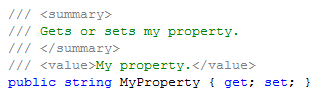
The refactor feature in Visual Studio is indispensable for many tasks, especially renaming, but one productivity feature I particularly like is Encapsulate Field. If you are unable to use an auto-implemented property, declare a private field and let Visual Studio generate the Property for you. To use this feature, right-click on the field and select Refactor > Encapsulate Field...
Speed up Compilation with Project Configuration
It's an obvious and trivial thing, but the timesaving will add up, especially for those actions you perform tens or hundreds of times a day such as building and debugging. Here are some basic bindings every Visual Studio developer should know:
- Build: CTRL + SHIFT + B
- Word completion: CTRL + SPACE
- Start with debugging: F5
- Start without debugging: CTRL + F5
Download the Visual C# 2008 Keybinding Reference Poster.
Use GhostDoc to create XML CommentsInstead of typing XML comments by hand, let a tool do the work for you. Although macros and snippets are reasonably effective for this, I would recommend Ghost Doc over any other solution. This free add-in uses customizable templates to generate consistent, English-readable documentation based on the current context. To use it, right-click (or use CTRL + SHIFT + D) to document the current element. For example:

This generates the following documentation:
 Auto-Implement Properties
 Take advantage of a new feature of C#: auto-implemented properties. Rather than creating a private backing field for your properties, let the compiler do it for you. The following demonstrates the syntax:

Use the code snippet to make this even faster. Type prop (the shortcut for an auto-implemented property) followed by TAB TAB. Then fill in the data type and property name:

The refactor feature in Visual Studio is indispensable for many tasks, especially renaming, but one productivity feature I particularly like is Encapsulate Field. If you are unable to use an auto-implemented property, declare a private field and let Visual Studio generate the Property for you. To use this feature, right-click on the field and select Refactor > Encapsulate Field...

The property is created for you:

Install the PowerCommands for Visual Studio 2008 to add several productivity commands such as:
- Close all documents
- Copy and paste a class (automatically renames)
- Remove and sort using statements project-wide
- Copy and paste references (including a project reference)
Install the Team Foundation Server Power Tools to add several TFS productivity commands such as:
- Find in source control
- Open source folder in Windows Explorer
- Work item templates (can be used to set values on multiple work items at once)
Add your own productivity commands. For example, to add Reflector so it automatically opens on the current project.
- Select Tools > External Tools
- Click Add
- Name it Reflector and browse to the executable
- Enter $(TargetPath) for the Arguments
Speed up Compilation with Project Configuration
You may build tens of times during a programming session, so don't enable anything that isn't absolute necessary such as code analysis and XML documentation. Develop in Debug configuration, and switch to Release configuration just before check-in to run code analysis and generate XML documentation. In a large solution I recently worked on, this shaved a minute off compilation time.

The following shows code analysis disabled in Debug configuration:

Although it can't fully automate unit testing yet (check out Pex), Visual Studio does a good job of generating positive unit test code to give you a jump start. To use this feature, right-click on an element you would like to test and select Create Unit Tests...

Visual Studio generates the following test method:

Friday, May 30, 2008
Find files faster with Find Combo Box !!!!
This is the Find dropdown that is on the Standard Toolbar, not the Find dialog. Use the shortcut CTRL+D to activate the Find dropdown in normal mode. Use CTRL+/ to activate the Find dropdown in command mode (with ">" prepended… this doesn’t work sometimes for me).
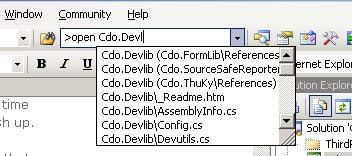
To quickly go to a file, type CTRL+D, >open. Intellisense works here just like in the Command Window. "of" (short for "open file") can be used instead of open. Compare this with opening Solution Explorer, expand the correct folder/project, and visually hunt for the file you need.

To quickly go to a file, type CTRL+D, >open
Start debugging faster by "Attach to Process"
Most ASP.NET developers use the standard F5 (Debug/Start Debugging) to start debugging from Visual Studio. However, there is a much faster way to start debugging if you already have an instance of your web application running. Just attach to it instead:
- Choose Debug/Attach to Process.
- Select the "aspnet_wp.exe" process and choose Attach.
Monday, May 26, 2008
Enjoy Code Snippet with Visual Studio 2008 !!!!!!!
If you know what is "Code Snippet" ? & how to use it? with visual studio 2005.
But now if you are using Visual Studio 2008 then you won't find it. Don't worry it is not removed from visual studio, you can still use it.
Copy and paste or create your snippet file to following address of your computer:
My Documents\Visual Studio 2008\Code Snippets\Visual C#\My Code Snippets
It's done, just go to visual studio and write down snippet name and press tab.
Cheers!!!!
But now if you are using Visual Studio 2008 then you won't find it. Don't worry it is not removed from visual studio, you can still use it.
Copy and paste or create your snippet file to following address of your computer:
My Documents\Visual Studio 2008\Code Snippets\Visual C#\My Code Snippets
It's done, just go to visual studio and write down snippet name and press tab.
Cheers!!!!
Wednesday, April 9, 2008
Test your .NET skills
Shared assemblies are installed where?
(A) System Assembly Cache (B) Global Assembly Cache
(C) Machine Assembly Cache (D) Windows Assembly Cache
Which of the following is not a method of System.Object?
(A) GetType (B) ToString (C) Equals (D) Clone
What is the term used to describe the process the Runtime uses to find an assembly?
(A) Locating (B) Probing (C) SearchiWhat is the default value for the Char type?
Ans: '\0'
Which of the following is a value type, and not a reference type?
Ans: enum
What is the default version of an assembly?
Ans: 1:0:0:0
Monday, April 7, 2008
Do more with C# & Functional programming - Treat Code as Data
Take advantage of new features in C# 3.0 that let you treat code as data -- and save time over more traditional, imperative approaches to programming.
LINQ and C# 3.0 will force you to learn some new idioms in your everyday programming tasks. The idiom that has the most far-reaching consequences is learning to treat code as data. Every time you build a query expression, you're treating code as data. You're passing around bits of code or logic as parameters to a method. The methods in the LINQ libraries don't return data, but delegates that can create the data when you need them. This might feel strange, but it's not as far-fetched as it sounds. From the outside, it shouldn't matter whether a data value is cached or is computed from first principles. For example, this bit of code shouldn't seem scary:
Do you know whether Math.Sin computes the sine of the angle when you call it? In many libraries, numeric methods like these are implemented using a large lookup table. The method simply returns the value in the lookup table, or makes a linear interpolation of the two nearest values if the request angle isn't in the lookup table.
var num = Math.Sin(Math.PI / 4.0);
Do you know whether Math.Sin computes the sine of the angle when you call it? In many libraries, numeric methods like these are implemented using a large lookup table. The method simply returns the value in the lookup table, or makes a linear interpolation of the two nearest values if the request angle isn't in the lookup table.
From your perspective as the one initiating a call to this method, it doesn't matter. The contract of the method is to return a value corresponding to the input parameter. How it happens isn't important.
There's one key point to consider here: I said that how the calculation happens isn't important. That's true -- unless the calculation depends on some side effect. Sine doesn't depend on any side effects, so it works no matter what. Other methods aren't pure functions. For example, this method depends on information beyond the current parameters:
public static decimal CurrentTemperature(int zipCode)
Calling this method at different times with the same input gives different answers. Temperature varies over the course of a day. Substituting the answer (a number that won't change) for a function (some way to find the current answer) doesn't work.
There are also quite a few gray areas, where the answer to whether or not you can substitute a function for data or vice versa turns out to be: "It depends."
Methods as Parameters Are familiar
You've worked with methods as parameters before. The List.RemoveAll() method uses a predicate to determine what items to remove from a list. This predicate is a pure function; it depends only on its input:
numbers.RemoveAll((n) => n > 20);
You can also use the ForEach method to print a list of numbers:
numbers.ForEach((n) => Console.WriteLine(n));
However, this bit of code is much more complicated, and it has dependencies related to how the internal algorithm is implemented. For example, this code removes all numbers from a list of integers where the number is greater than its index in the list:
numbers.RemoveAll((n) => n >
numbers.IndexOf(n));
This isn't a pure function because the output depends on something other than the input. Namely, it depends on the current program's state. Does RemoveAll() remove each element as it's processed? That would change the current index of the items. Or, does it perform all the tests and then perform a bulk remove? In which order does it examine the list? First to last? Or last to first? The results of this code will depend on the answers to these questions. (For the record, RemoveAll performs all of the tests, and then removes all of the items. Knowing that doesn't make this code any more excusable, however.)
There are quite a few new techniques and concepts that you use when you begin to think of your code as data. You'll be using lambda expressions, deferred execution, closures, higher order functions, and function composition. And, unlike switching to a pure functional language, you'll likely be mixing your current object-oriented style of programming with this new functional approach, where functions are data. Yes, it's a steep learning curve, but the ends are worth the effort.
It's possible to implement every one of the techniques just mentioned in C# 2.0, but you can do so much more easily in C# 3.0 because the syntax is so much cleaner, so I'll show you how to implement these techniques using C# 3.0's syntax.
A lambda expression is nothing more than a simplified way to express a method. (In the formal definition, lambda expressions shouldn't have any side effects, but C# doesn't enforce this rule.) Consider this statement from earlier in the article:
numbers.ForEach((n) => Console.WriteLine(n));
This is nothing more than a concise way of saying:
numbers.ForEach(delegate(int n )
{
Console.WriteLine(n);
});
Using the lambda syntax, the compiler infers the type of the parameter (an integer) and the type of the return (void in this case). There's nothing too earth-shattering here, but you must keep the key point in mind: You're passing a function (in the form of a delegate) to the ForEach method. Essentially, the parameter is describing the algorithm. That's a fundamental change in terms of how you think about your code.
Deferred execution changes your thinking about code in some important ways (see Listing 1). Now consider the output from a test that runs the code in Listing 1:
2/19/2008 2:18:14 PM
2/19/2008 2:18:23 PM
2/19/2008 2:18:32 PM
2/19/2008 2:18:41 PM
2/19/2008 2:18:50 PM
Do it again
2/19/2008 2:19:08 PM
2/19/2008 2:19:17 PM
2/19/2008 2:19:26 PM
2/19/2008 2:19:35 PM
2/19/2008 2:19:44 PM
I chose to use the DateTime.Now property to generate the sequence because it gives you a clear picture of when operations happen. You can see that there's a nine-second delay between generating the next sequence item. Also, when you examine the sequence again, you get a totally different sequence of times. The sequence is an algorithm that can create values, but the sequence isn't the values themselves. Again, you're now treating code as data. The sequence of values doesn't exist until you ask for it. Even after you ask for it, the variable sequence still doesn't contain values. If you examine it again, you see a new sequence of values.
Closures Introduce Bound Variables
One more bit of dry computer science, and then we can move onto the more interesting ramifications of treating code as data. Assume you alter Listing 1 to create different behavior (see Listing 2). Now, examine its output:
2/19/2008 2:34:27 PM
2/19/2008 2:34:27 PM
2/19/2008 2:34:27 PM
2/19/2008 2:34:27 PM
2/19/2008 2:34:27 PM
Do it again
2/19/2008 2:35:21 PM
2/19/2008 2:35:21 PM
2/19/2008 2:35:21 PM
2/19/2008 2:35:21 PM
2/19/2008 2:35:21 PM
What changed? Well, the compiler created a closure containing Current as a bound variable. A closure is a way to inject local variables (or parameters) into the body of the lambda expression. Those local variables are referred to as "bound variables." The closure contains both the local variables and lambda expressions. The code is implemented in such a way that changes to the bound variable outside of the lambda expression are reflected inside the lambda expression, and vice versa. In this piece of code, you see that the generator returns a sequence containing five copies of the current time. Later, you modify the value of the bound variable (current), outside the lambda. The next time you enumerate the sequence, you get five copies of the newer version of the variable.
Putting This to Work
All of this is wonderful, but why should you care? Using this kind of algorithm can help you create snippets of code to reuse later. Think about how many times you've written code like this:
var currentCustmers =
From c in customerList
Where c.Orders.Count > 0
Select c;
Because that variable contains code, not just data, you're actually creating a bit of logic that gives you the current customer list when requested, rather than when the logic executed originally. Instead of copying that code everywhere, you need only access that code when you need it.
Another advantage is that you can work with sequences that are far too large to examine or process on your local machine. You can chain these sequence operators together. When you do that, you're not making new copies of data. You're manipulating the algorithm and the functions, and that new set of functions provides a new answer when you examine it.
You can see this at work by converting an ancient numeric algorithm from imperative to declarative. You can find full source for this conversion in the online code, but I'll highlight the key points in this article's inline code. Hero of Alexandria's algorithm for finding square roots lets you find the square root of any number S, by starting with a guess G (S-1 works fine). The next guess is computed using the formula ((S / G + G) / 2). For example, to find the square root of 2, you start with 1 as the guess. The next guess is 1.5 ((2 / 1 + 1) / 2). The next guess is 1.416 ((2 / 1.5 + 1.5) / 2). After enough iterations, the answer converges on the square root.
You begin with a classic C# imperative implementation of Hero's algorithm (see Listing 3). Next, you make a set of changes and re-implement this algorithm to make it more declarative, or functional (see Listing 4).
It's a twist, so look at this revised listing carefully. Begin with HeroRootFunc, which defines a function that creates a sequence of guesses. It returns the last number in the sequence. The method contains two anonymous methods that define how to generate the next number, and when to stop. This expression defines how to generate the next number:
(g) => ((square / g + g) / 2)
This expression defines when to terminate the sequence:
(c, n) => Math.Abs(c - n) > epsilon)
The query expression returns the entire sequence. The Last() extension method returns the last value in the sequence, which is the best answer.
The GenerateSequence() method generates the sequence while the test method returns true. It creates the sequence by evaluating each of the functions used as arguments. These methods generate the sequence and perform the tests. However, they only generate the sequence when someone asks for the final number.
Look again at the implementation of the functional version of Hero's algorithm. The sequence function generates an infinite sequence. This algorithm would run out of memory if it were imperative. No matter how you do it, you can't fit an infinite number of elements in memory. It would also take an infinite amount of time. And yet, this works, because the functions defined as parameters are evaluated only when requested. Also, the GenerateSequence() method can be used for other purposes.
Not every problem is best solved using functional approaches, but many problems can be solved more succinctly and more clearly by rethinking parameters and return types. Instead of sending all the data, you can send along a function that can generate the data you need. Sometimes that can give you the answer while requiring much less work on your part.
Highly customizable CAPTCHA verification. Its Free !!!
Learn and defend your ASP.NET sites against evil bots with this free web control that provides instant, highly customizable CAPTCHA verification.
Its Free !!!
Its Free !!!
Wednesday, April 2, 2008
Visual studio Posters!!!!! Very useful
Hear is the interesting blog post containing links to posters about Microsoft technologies.
It lists posters for Visual studio 2008!!! also with C# and VB. Also it contains posters for developers , business apps and professional apps also.
Wednesday, March 26, 2008
C# 3.0 New language features
Automatic Properties
If you are a C# developer today, you are probably quite used to writing classes with basic properties like the code-snippet below:
public class Person {
private string _firstName;
private string _lastName;
private int _age;
public string FirstName {
get {
return _firstName;
}
set {
_firstName = value;
}
}
public string LastName {
get {
return _lastName;
}
set {
_lastName = value;
}
}
public int Age {
get {
return _age;
}
set {
_age = value;
}
}
}
public class Person {
public string FirstName { get; set; }
public string LastName { get; set; }
public int Age { get; set; }
}
When the C# "Orcas" compiler encounters an empty get/set property implementation like above, it will now automatically generate a private field for you within your class, and implement a public getter and setter property implementation to it. The benefit of this is that from a type-contract perspective, the class looks exactly like it did with our first (more verbose) implementation above. This means that -- unlike public fields -- I can in the future add validation logic within my property setter implementation without having to change any external component that references my class.
Object Initializers
Types within the .NET Framework rely heavily on the use of properties. When instantiating and using new classes, it is very common to write code like below:
Person person = new Person();
person.FirstName = "Scott";
person.LastName = "Guthrie";
person.Age = 32;
Have you ever wanted to make this more concise (and maybe fit on one line)? With the C# and VB "Orcas" compilers you can now take advantage of a great "syntactic sugar" language feature called "object Initializers" that allows you to-do this and re-write the above code like so:
Person person = new Person { FirstName="Scott", LastName="Guthrie", Age=32 };
Object Initializers are great, and make it much easier to concisely add objects to collections. For example, if I wanted to add three people to a generics-based List collection of type "Person", I could write the below code:
List people = new List() ;
people.Add( new Person { FirstName = "Scott", LastName = "Guthrie", Age = 32 } );
people.Add( new Person { FirstName = "Bill", LastName = "Gates", Age = 50 } );
people.Add( new Person { FirstName = "Susanne", LastName = "Guthrie", Age = 32 } );
people = new List {
new Person { FirstName = "Scott", LastName = "Guthrie", Age = 32 },
new Person { FirstName = "Bill", LastName = "Gates", Age = 50 },
new Person { FirstName = "Susanne", LastName = "Guthrie", Age = 32 }
};
When the compiler encounters the above syntax, it will automatically generate the collection insert code like the previous sample for us.
If you are a C# developer today, you are probably quite used to writing classes with basic properties like the code-snippet below:
public class Person {
private string _firstName;
private string _lastName;
private int _age;
public string FirstName {
get {
return _firstName;
}
set {
_firstName = value;
}
}
public string LastName {
get {
return _lastName;
}
set {
_lastName = value;
}
}
public int Age {
get {
return _age;
}
set {
_age = value;
}
}
}
Note about that we aren't actually adding any logic in the getters/setters of our properties - instead we just get/set the value directly to a field. This begs the question - then why not just use fields instead of properties? Well - there are a lot of downsides to exposing public fields. Two of the big problems are: 1) you can't easily databind against fields, and 2) if you expose public fields from your classes you can't later change them to properties (for example: to add validation logic to the setters) without recompiling any assemblies compiled against the old class.
The new C# compiler that ships in "Orcas" provides an elegant way to make your code more concise while still retaining the flexibility of properties using a new language feature called "automatic properties". Automatic properties allow you to avoid having to manually declare a private field and write the get/set logic -- instead the compiler can automate creating the private field and the default get/set operations for you.
For example, using automatic properties I can now re-write the code above to just be:
public class Person {
public string FirstName {
get; set;
}
public string LastName {
get; set;
}
public int Age {
get; set;
}
}
public class Person {
public string FirstName { get; set; }
public string LastName { get; set; }
public int Age { get; set; }
}
When the C# "Orcas" compiler encounters an empty get/set property implementation like above, it will now automatically generate a private field for you within your class, and implement a public getter and setter property implementation to it. The benefit of this is that from a type-contract perspective, the class looks exactly like it did with our first (more verbose) implementation above. This means that -- unlike public fields -- I can in the future add validation logic within my property setter implementation without having to change any external component that references my class.
Object Initializers
Types within the .NET Framework rely heavily on the use of properties. When instantiating and using new classes, it is very common to write code like below:
Person person = new Person();
person.FirstName = "Scott";
person.LastName = "Guthrie";
person.Age = 32;
Have you ever wanted to make this more concise (and maybe fit on one line)? With the C# and VB "Orcas" compilers you can now take advantage of a great "syntactic sugar" language feature called "object Initializers" that allows you to-do this and re-write the above code like so:
Person person = new Person { FirstName="Scott", LastName="Guthrie", Age=32 };
The compiler will then automatically generate the appropriate property setter code that preserves the same semantic meaning as the previous (more verbose) code sample above.
In addition to setting simple property values when initializing a type, the object initializer feature allows us to optionally set more complex nested property types. For example, assume each Person type we defined above also has a property called "Address" of type "Address". We could then write the below code to create a new "Person" object and set its properties like so:
Person person = new Person {
FirstName = "Scott",
LastName = "Guthrie"
Age = 32,
Address = new Address {
Street = "One Microsoft Way",
City = "Redmond",
State = "WA",
Zip = 98052
}
};
Object Initializers are great, and make it much easier to concisely add objects to collections. For example, if I wanted to add three people to a generics-based List collection of type "Person", I could write the below code:
List
people.Add( new Person { FirstName = "Scott", LastName = "Guthrie", Age = 32 } );
people.Add( new Person { FirstName = "Bill", LastName = "Gates", Age = 50 } );
people.Add( new Person { FirstName = "Susanne", LastName = "Guthrie", Age = 32 } );
Using the new Object Initializer feature alone saved 12 extra lines of code with this sample versus what I'd need to type with the C# 2.0 compiler.
The C# and VB "Orcas" compilers allow us to go even further, though, and also now support "collection initializers" that allow us to avoid having multiple Add statements, and save even further keystrokes:
Listnew Person { FirstName = "Bill", LastName = "Gates", Age = 50 },
new Person { FirstName = "Susanne", LastName = "Guthrie", Age = 32 }
};
When the compiler encounters the above syntax, it will automatically generate the collection insert code like the previous sample for us.
New Designer Support in Visual Studio 2008
Following video illustrates new features that are useful for developers as well as designers.
Click here !!!!!!!!
Click here !!!!!!!!
Tuesday, March 25, 2008
PowerCommands for Visual Studio 2008
PowerCommands is a set of useful extensions for the Visual Studio 2008 adding additional functionality to various areas of the IDE. The source code is included and requires the VS SDK for VS 2008 to allow modification of functionality or as a reference to create additional custom PowerCommand extensions. Visit the VSX Developer Center at http://msdn.com/vsx for more information about extending Visual Studio.
The Releases page contains download files (MSI installation file, readme document, and source code project).

Below is a list of the included in PowerCommands for Visual Studio 2008 version 1.0. Refer to the Readme document which includes many additional screenshots.
Collapse Projects
This command collapses a project or projects in the Solution Explorer starting from the root selected node. Collapsing a project can increase the readability of the solution. This command can be executed from three different places: solution, solution folders and project nodes respectively.
Copy Class
This command copies a selected class entire content to the clipboard, renaming the class. This command is normally followed by a Paste Class command, which renames the class to avoid a compilation error. It can be executed from a single project item or a project item with dependent sub items.
Paste Class
This command pastes a class entire content from the clipboard, renaming the class to avoid a compilation error. This command is normally preceded by a Copy Class command. It can be executed from a project or folder node.
Copy References
This command copies a reference or set of references to the clipboard. It can be executed from the references node, a single reference node or set of reference nodes.
Paste References
This command pastes a reference or set of references from the clipboard. It can be executed from different places depending on the type of project. For CSharp projects it can be executed from the references node. For Visual Basic and Website projects it can be executed from the project node.
Copy As Project Reference
This command copies a project as a project reference to the clipboard. It can be executed from a project node.
Edit Project File
This command opens the MSBuild project file for a selected project inside Visual Studio. It combines the existing Unload Project and Edit Project commands.
Open Containing Folder
This command opens a Windows Explorer window pointing to the physical path of a selected item. It can be executed from a project item node
Open Command Prompt
This command opens a Visual Studio command prompt pointing to the physical path of a selected item. It can be executed from four different places: solution, project, folder and project item nodes respectively.
Unload Projects
This command unloads all projects in a solution. This can be useful in MSBuild scenarios when multiple projects are being edited. This command can be executed from the solution node.
Reload Projects
This command reloads all unloaded projects in a solution. It can be executed from the solution node.
Remove and Sort Usings
This command removes and sort using statements for all classes given a project. It is useful, for example, in removing or organizing the using statements generated by a wizard. This command can be executed from a solution node or a single project node.
Note: The Remove and Sort Usings feature is only available for C# projects since the C# editor implements this feature as a command in the C# editor (which this command calls for each .cs file in the project).
Extract Constant
This command creates a constant definition statement for a selected text. Extracting a constant effectively names a literal value, which can improve readability. This command can be executed from the code editor by right-clicking selected text.
Clear Recent File List
This command clears the Visual Studio recent file list. The Clear Recent File List command brings up a Clear File dialog which allows any or all recent files to be selected.
Clear Recent Project List
This command clears the Visual Studio recent project list. The Clear Recent Project List command brings up a Clear File dialog which allows any or all recent projects to be selected.
Transform Templates
This command executes a custom tool with associated text templates items. It can be executed from a DSL project node or a DSL folder node.
Close All
This command closes all documents. It can be executed from a document tab.
The Releases page contains download files (MSI installation file, readme document, and source code project).

Below is a list of the included in PowerCommands for Visual Studio 2008 version 1.0. Refer to the Readme document which includes many additional screenshots.
Collapse Projects
This command collapses a project or projects in the Solution Explorer starting from the root selected node. Collapsing a project can increase the readability of the solution. This command can be executed from three different places: solution, solution folders and project nodes respectively.
Copy Class
This command copies a selected class entire content to the clipboard, renaming the class. This command is normally followed by a Paste Class command, which renames the class to avoid a compilation error. It can be executed from a single project item or a project item with dependent sub items.
Paste Class
This command pastes a class entire content from the clipboard, renaming the class to avoid a compilation error. This command is normally preceded by a Copy Class command. It can be executed from a project or folder node.
Copy References
This command copies a reference or set of references to the clipboard. It can be executed from the references node, a single reference node or set of reference nodes.
Paste References
This command pastes a reference or set of references from the clipboard. It can be executed from different places depending on the type of project. For CSharp projects it can be executed from the references node. For Visual Basic and Website projects it can be executed from the project node.
Copy As Project Reference
This command copies a project as a project reference to the clipboard. It can be executed from a project node.
Edit Project File
This command opens the MSBuild project file for a selected project inside Visual Studio. It combines the existing Unload Project and Edit Project commands.
Open Containing Folder
This command opens a Windows Explorer window pointing to the physical path of a selected item. It can be executed from a project item node
Open Command Prompt
This command opens a Visual Studio command prompt pointing to the physical path of a selected item. It can be executed from four different places: solution, project, folder and project item nodes respectively.
Unload Projects
This command unloads all projects in a solution. This can be useful in MSBuild scenarios when multiple projects are being edited. This command can be executed from the solution node.
Reload Projects
This command reloads all unloaded projects in a solution. It can be executed from the solution node.
Remove and Sort Usings
This command removes and sort using statements for all classes given a project. It is useful, for example, in removing or organizing the using statements generated by a wizard. This command can be executed from a solution node or a single project node.
Note: The Remove and Sort Usings feature is only available for C# projects since the C# editor implements this feature as a command in the C# editor (which this command calls for each .cs file in the project).
Extract Constant
This command creates a constant definition statement for a selected text. Extracting a constant effectively names a literal value, which can improve readability. This command can be executed from the code editor by right-clicking selected text.
Clear Recent File List
This command clears the Visual Studio recent file list. The Clear Recent File List command brings up a Clear File dialog which allows any or all recent files to be selected.
Clear Recent Project List
This command clears the Visual Studio recent project list. The Clear Recent Project List command brings up a Clear File dialog which allows any or all recent projects to be selected.
Transform Templates
This command executes a custom tool with associated text templates items. It can be executed from a DSL project node or a DSL folder node.
Close All
This command closes all documents. It can be executed from a document tab.
Subscribe to:
Posts (Atom)

